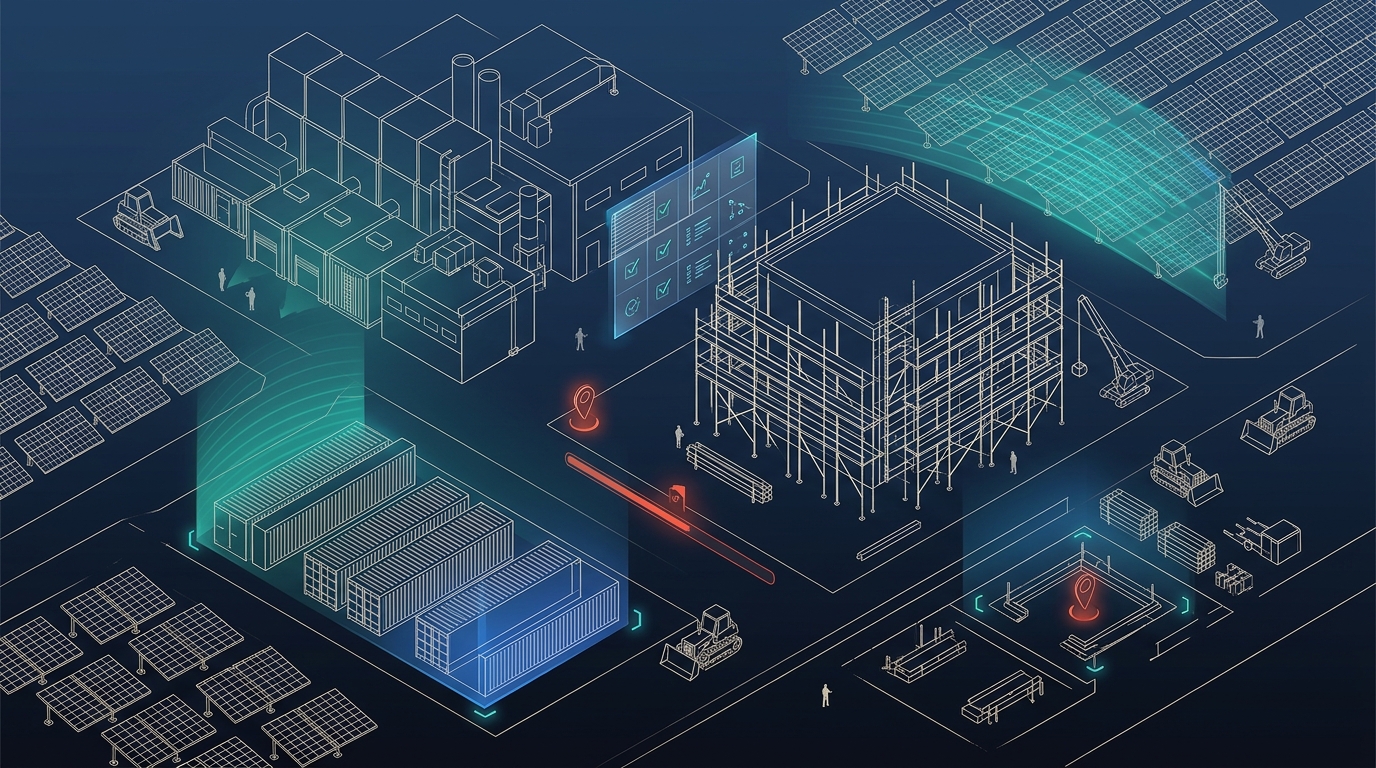
Hero image not yet added — drop a file at /assets/hero-construction.jpg
PyCray Technologies

SiteIQ

AI-Enabled Decision Intelligence Platform for Real Estate
Sign in as
New project
PyCray Technologies
SiteIQ
Claude Vision
PyCray · PoC

SiteIQ

AI Progress Tracking & Risk Flagging
PyCray Technologies
MODEL: CLAUDE VISION
MODE: PORTFOLIO TRACKING
Mode hide ▴
Project type hide ▴
Project
+ create new project
Select Role
Supervisor queue
Every field submission lands here first. Nothing reaches the project record — or Project Manager / Leadership views — until approved.
Review log
Full details for every pending, approved, and rejected submission.
QC checklist
Sign off each item as OK, non-compliant, or not applicable. Add, edit, or delete questions for this project — changes apply only here. Where the latest approved assessment produced an AI suggestion, it's shown as a starting point — your sign-off is what counts.
Project completion
0%
0 zones assessed
clear all stored data for this project type
Status report
Reference schedule (WBS / L4) hide details
WBS details
Upload the WBS sheet above. Expand L1 to show related L2 rows, then expand L2 to show related L3 activities.
Zone deep dive —
Risk Register hide ▴
01  Upload site photo
A Project Manager needs to upload the WBS / L4 sheet before photos can be tagged to an activity.
Supervisor voice note (optional)
02  Submission Status
03  Aerial check (optional) show ▾
A second-level cross-check only — not an independent measurement. Upload a drone/aerial photo and Claude compares it against what the ground-level zone photos already concluded, flagging only mismatches (e.g. "ground says RCC is complete, but the aerial still shows open excavation"). Skip this entirely if you don't have drone coverage — everything else in the tool works without it.
Current zone labels (reference these in the coverage note below):
Pilot/engineer voice note (optional)
Maintenance type
Tower condition summary
0
0/7 zones surveyed
clear all stored tower data
Condition findings
Tower report
01  Select tower zone
Colored edge = worst open finding · green = no open findings · blue = low · amber = medium · red = high · dark red = critical
02  Upload survey photo
Technician voice note (optional)
03  Survey Result